
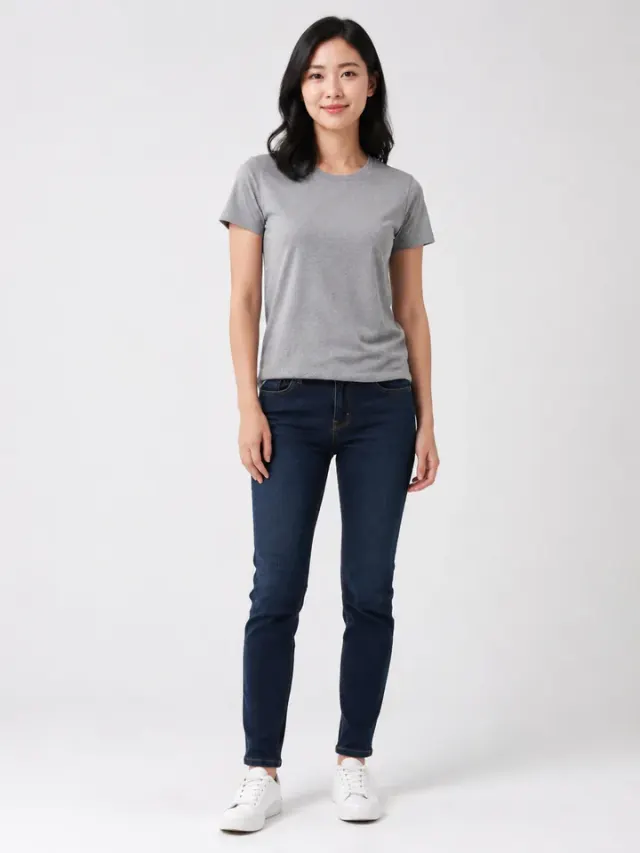
Everyday t-shirt
Design a gray everyday t-shirt with a small navy botanical chest graphic. Pair it with jeans in a clean studio, with natural fabric folds.
Use this promptHave a shirt idea? Describe it or bring a reference photo to our AI image editor. Start with free account credits, refine your image, then explore virtual try-on and video when you need them.
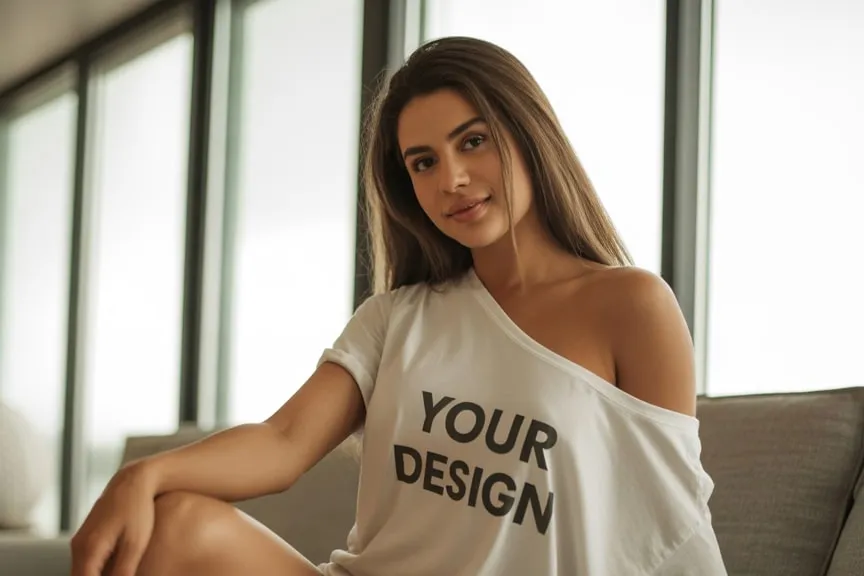
One reference portrait and two try-on looks from our existing examples. Use their colors and styling for new t-shirt ideas; prompts do not promise identical results.
Design a gray everyday t-shirt with a small navy botanical chest graphic. Pair it with jeans in a clean studio, with natural fabric folds.
Use this prompt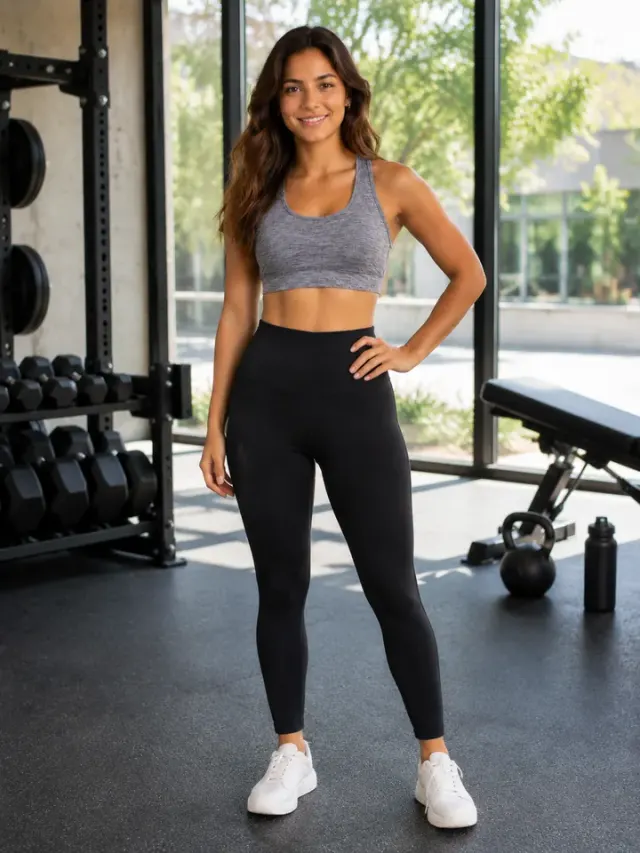
Design a relaxed sports t-shirt inspired by gray activewear and black leggings. Add a small geometric chest graphic and show the outfit in a bright gym.
Use this prompt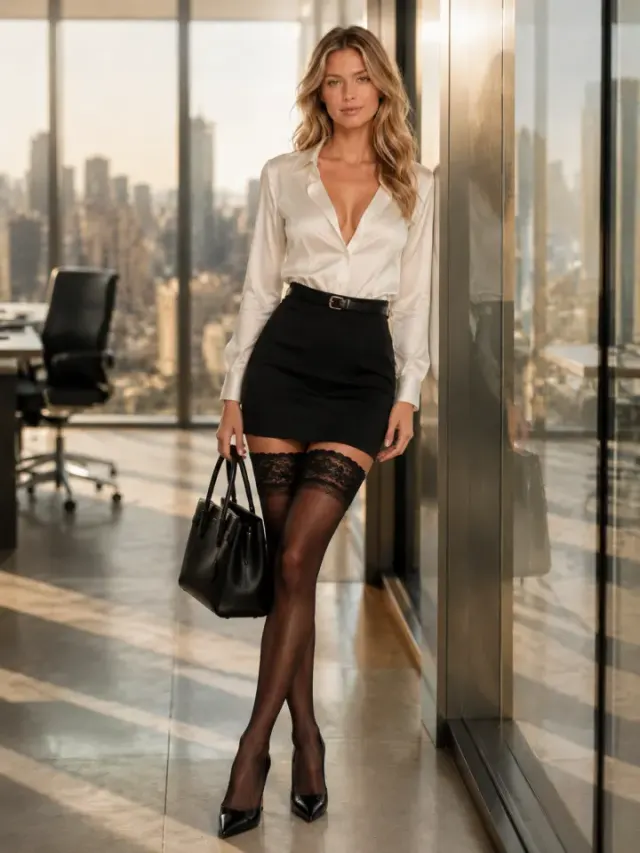
Create a smart casual outfit with a white t-shirt and black skirt. Add a small navy geometric chest print and use warm window light.
Use this promptStart in the AI image editor. Upload a reference you have permission to use and describe the changes, or create from a text prompt. Specify the subject, colors and graphic style. Look, one clear idea is usually a better starting point than a paragraph of competing details.
Try a different palette, a simpler composition or a new illustration style. The editor creates an image, not a layered layout file. Check lettering, edges, background and pixel dimensions before sending it to a printer. Shirt mockups show an idea; they are not separate print artwork or a guarantee of print quality.
Once you have a garment image, open the separate try-on tool and add it alongside a person photo. Use the result to explore the overall look. A generated preview does not measure size or guarantee fit, fabric behavior or exact artwork placement.
Want a moving preview for a product post? Open the video tool and upload your chosen image. Describe the motion you want and review the available settings and credit cost. Image design, try-on and video are three separate tools; you choose when to move to the next one.
You can start with free account credits when the signup offer is available. Image generation requires sign-in and uses credits. Check your account balance and the cost shown in the tool; this is not unlimited free generation.
1. Open the image editor and upload a reference or enter a description. 2. Choose the available output settings and generate. 3. Review the result, download it and check your printer's file requirements.
Yes. Upload a reference in the image editor and describe what you want to change. AI may also change details you wanted to keep, so compare the result with the original before using it.
They are visual examples with suggested prompts. Use a prompt as a starting point and adjust it in the editor. The images do not promise an identical generated result or a downloadable layered template.
You can download your result from the image tool. File format, background and resolution depend on the output; automatic transparency and a fixed print DPI are not guaranteed. Prepare and check the file against your printer's specifications.
No. They open as separate tools. Upload the image you want to use and review that tool's requirements and credit cost before generating. You can use just the image editor if that is all you need.
Open the image editor, add a reference or a description, and check the credit cost before generating. Sign in to create; further generations may require paid credits.
Start designing with AI